Learning CVA M²
CVA M² is the fleet maintenance module of the Integovox platform. Your company's own name and logo appear in the app, and Phoenix is your shop's AI assistant. This guide covers every screen in the sidebar, grouped the same way the app groups them: Dashboard, day-to-day operations, Workshop, Reports, and Admin.
Start with what you need to do
Dashboard overview
The first screen you see when you open the app — a single-page summary of everything happening in the shop right now: safety alerts, blocked jobs, equipment due for service, who's clocked in, and where money is going. Check it first thing in the morning, and again periodically through the day.
DVIR Alerts
Appears below the header only when there's at least one active alert. Three situations, each its own card:
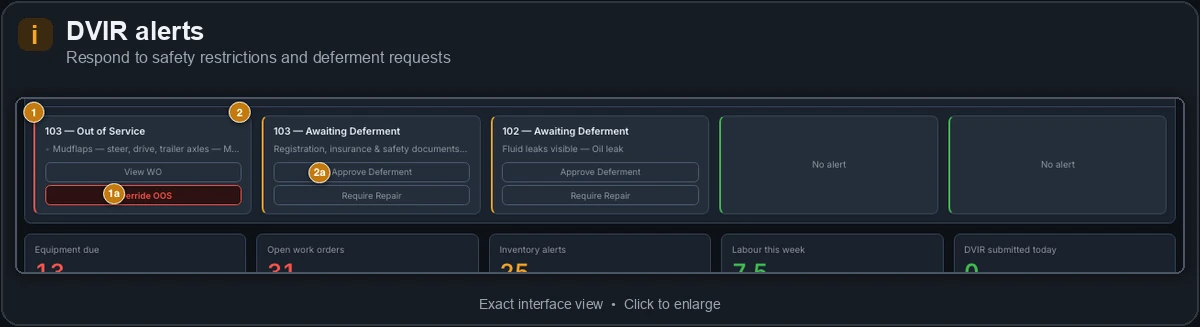
Out of Service RED
An asset was placed out of service by a driver's inspection. View WO opens the related job.
Override OOS releases the asset before repair is finished — use only when genuinely safe to do so, not to skip a needed repair. Requires a written reason.
Awaiting Deferment AMBER
Approve Deferment records the decision to defer. Require Repair needs no PIN — routing toward repair is the conservative choice.
Pending Sign-off BLUE
Sign Off Repair confirms the repair meets standards, releasing any tied restriction in the same step.
Summary Cards & layout
Five shortcut cards (Equipment due, Open work orders, Inventory alerts, Labour this week, DVIR submitted today), a three-column section (Equipment service status, Relay, Work Orders spotlight), a Financial Snapshot, and Connected Devices/Integrations along the bottom. Anything red means a decision is needed now.
Work orders
A kanban board — Open, In progress, Waiting for parts, Completed (hidden by default) — one card per job.
- Filter chips: Waiting Parts, Critical, Unassigned, Due Today, All. "Due Today" means "opened today" — there's no separate due-date field.
- A card shows asset, priority, assigned technician, job type/description, a blocked-on-parts flag, cost so far, and a quick-advance button.
Creating a work order — the redesigned slide-down
+ New work order opens a full-width panel that drops down from the top, not a side drawer. A 4-step progress indicator across the top (Unit → Complaint → Estimate → Authorization) tracks how far along you are — the panel doesn't force you through them in strict order, but Create stays disabled until the required fields across all of them are filled in (a live hint at the bottom, e.g. "Needs: a unit and a complaint," says exactly what's missing).
For a Repair job specifically, the panel splits into three columns:
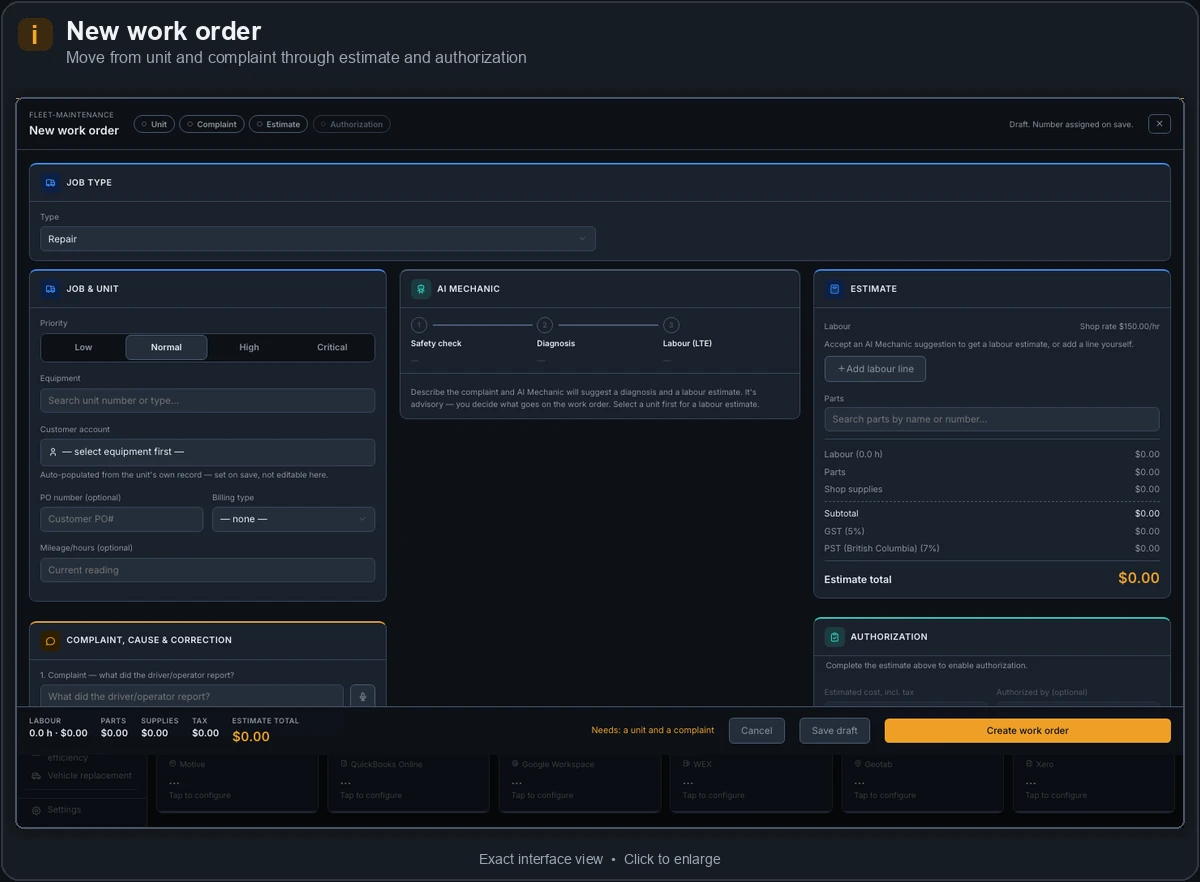
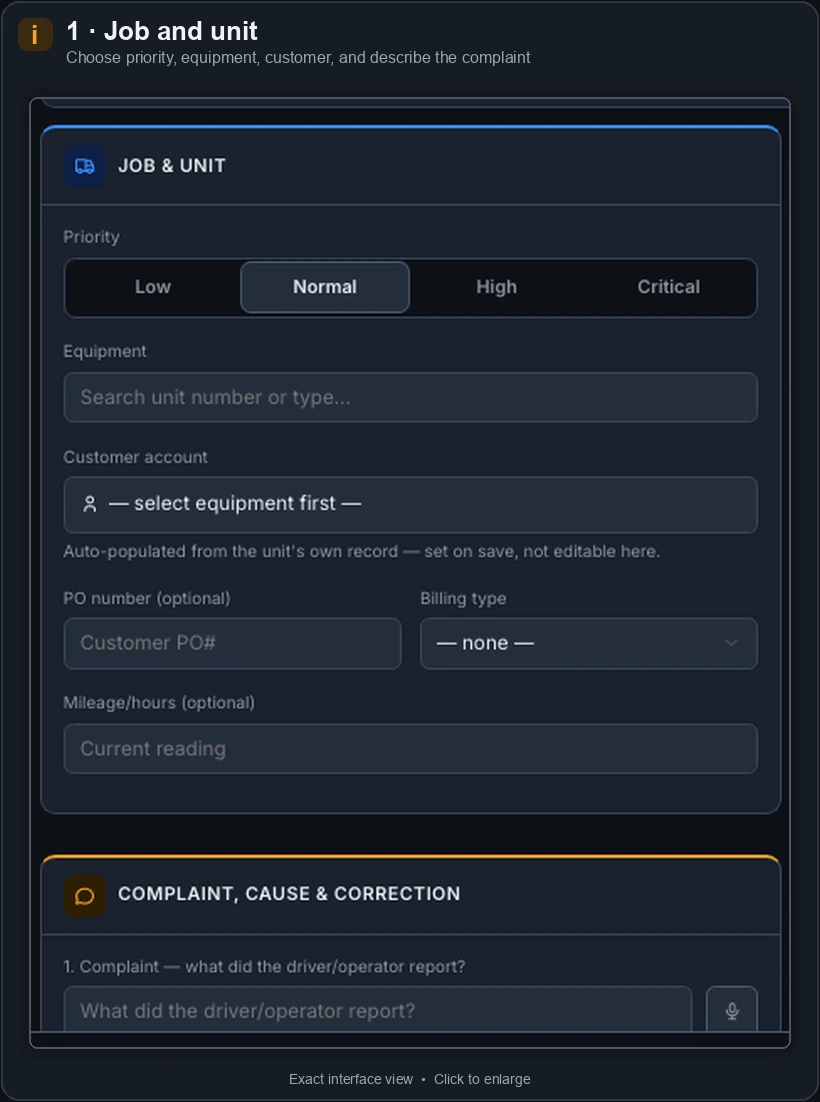
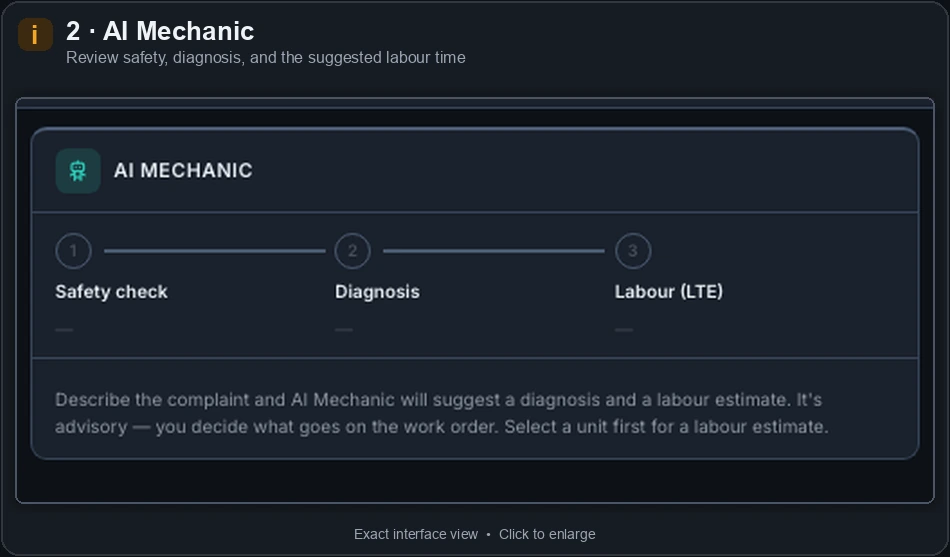
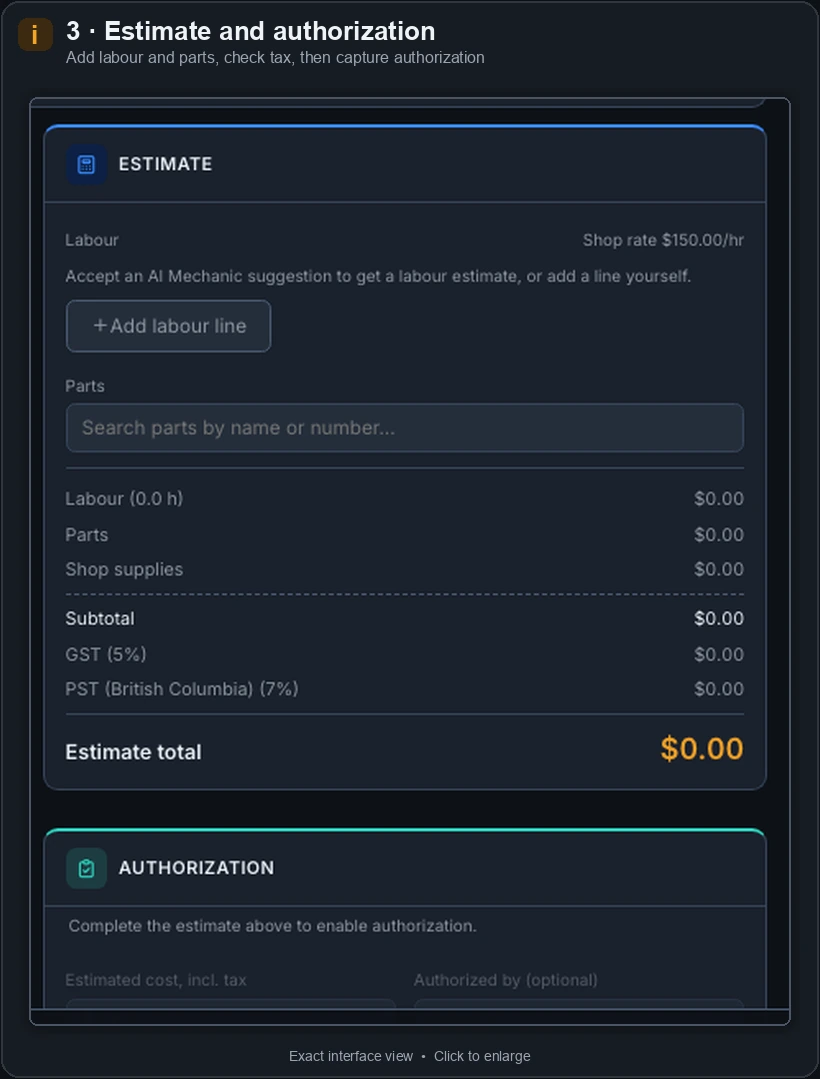
A sticky bar at the very bottom always shows the running Labour/Parts/Supplies/Tax/Total tally plus Cancel, Save draft, and Create work order — Save draft keeps the panel open so you can keep working; a work order number is assigned on save, not before. Non-repair job types (Preventive maintenance, Inspection, Fabrication, Third-party, General) skip the AI Mechanic/estimate treatment and use a simpler single-column form instead — that 3-column write-up only makes sense for a real repair diagnosis.
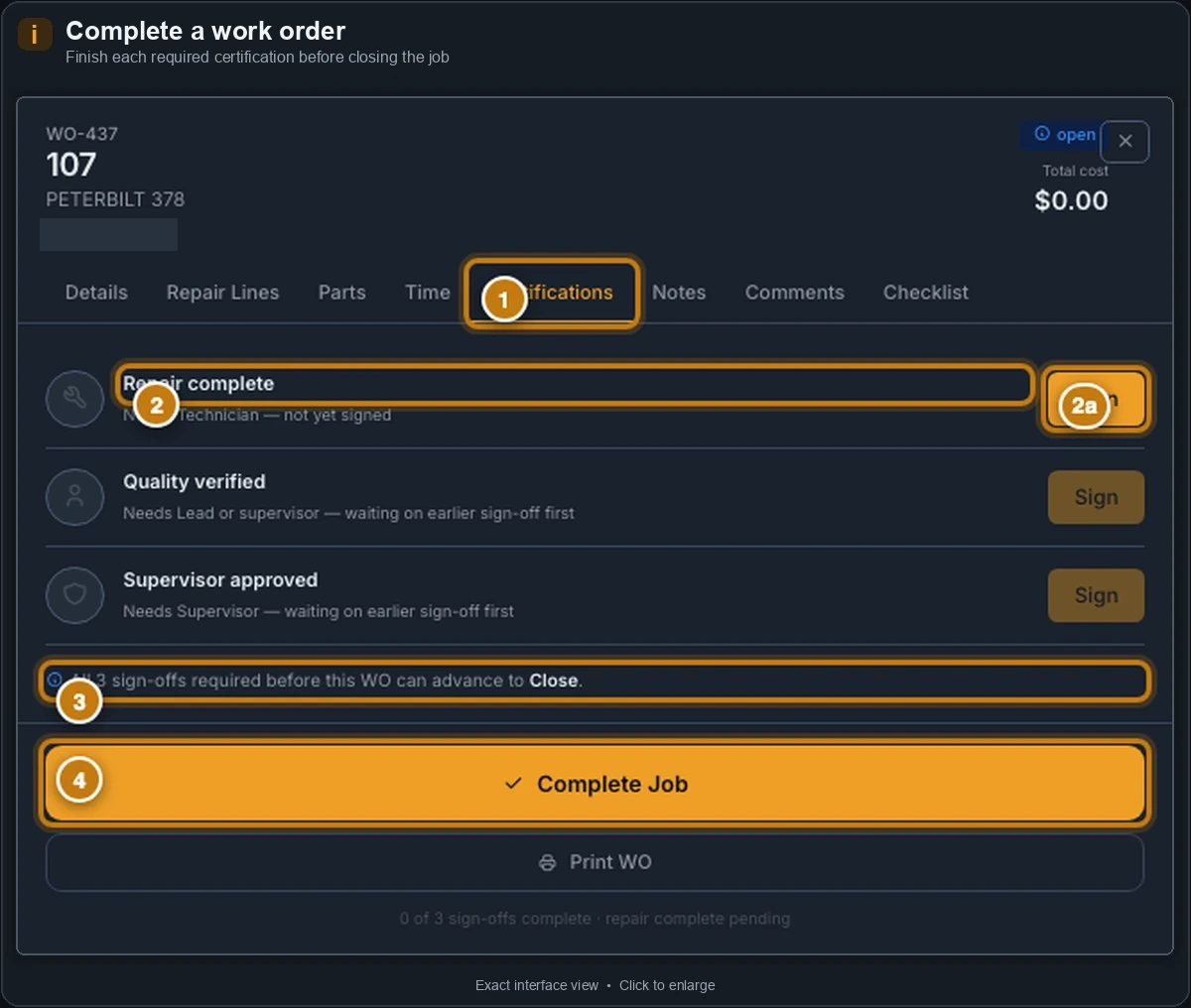
Work order detail (side panel), tab by tab: Details (AI Mechanic banner, cost summary with a labour-budget bar, status, priority, technician, scheduled start; a Generate Invoice button appears once completed and billed); Repair Lines (each accepted labour/repair item from the estimate above becomes its own line here, individually tracked through Inspect → Triage → Plan → Repair → Verify → Done, with its own status and its own AI Mechanic suggestion if you want a second opinion on just that line); Parts (from inventory, full list, supplier search, or manual — repair lines get their own default); Time (clock in/out per technician, live timer, an efficiency card that reads "—" until 10+ similar jobs exist); Certifications (the PIN-gated sign-off chain — up to 4 possible steps: repair complete, quality verified, driver accepted, supervisor approved — only the ones that actually apply to this job are shown, and every signature is attributed to whoever entered their PIN); Notes; Comments (type @ to mention someone); Checklist (read-only, inspection jobs only).
Completing a job goes through a dedicated Complete Job close-out flow, not the Status dropdown — checklist confirmation, labour, parts, a photo check, and the Certifications sign-off chain, so nothing gets marked done with loose ends.
Scheduling
The bay-by-bay board for a single day. + New reservation picks a bay, type, time window, and (for a work order) which job — the form blocks double-booking a bay outright. A critical work order gets its own red tag. This is the single-day assignment board; for a wider view across every scheduling-relevant source, use Calendar — the two don't auto-sync.
Calendar
A month/week/day grid pulling together five sources at once — scheduled work orders, bay reservations, PM due dates, compliance renewals, estimate expiries — each its own colour chip. A separate PM-due strip above the grid always shows overdue/due-soon assets regardless of the date you're viewing. Click any chip to jump to its record; a day with 3+ items in month view gets a "+N more" link into day view.
Load logs
Every hauling load, grouped by truck — date, driver, customer, scale-ticket number, route, weight, and a Signed/Unsigned pill. Click a row for the full bill-of-lading: tare/gross/net weights, axle-group weights if captured, the driver's signature image, and any photos. A "Trip 2" tag appears for a second same-day trip.
Fault reports
Specifically repair jobs that came from a driver's DVIR — a tech's own "Report issue" on the tablet doesn't show up here. Same kanban shape as Work Orders, defaulted to "Needs sign-off."
Get a red banner blocking the asset for every driver until cleared. Clear out-of-service requires typing your name — this both records who cleared it and releases the asset in the same action, so the two can't fall out of sync.
DVIR history
Every pre-/post-trip submission, filterable by driver, asset, date range, type, defect presence, and safety-critical presence — groupable by asset type, asset, driver, or date. Click a submission for odometer, fuel level, GPS location if captured (often legitimately missing), and the full checklist with photos/AI advisories. Edit corrects odometer/result/notes after the fact, logged in a visible Edit history. Export CSV downloads the current filter.
Defect reports
One row per failed checklist item (narrower than DVIR history's whole-submission view). Status is one of Open, Open (WO in progress), Deferred, or Resolved. Clicking a defect shows its photo, AI advisory with confidence and citations, and its resolution.
Recall Library
NHTSA safety recalls matched against your fleet by make/model/year, checked automatically once a week. Filter Open/Resolved/All. Mark resolved is a manual confirmation — a recall remedy isn't necessarily the same action as a regular work order, so it doesn't auto-clear.
Equipment
Every asset, grouped by type (adapts to your real fleet). Status chips: All, Overdue, Due soon, In repair, Waiting parts, OK. Search bypasses every filter on purpose. Table shows hours until service, a progress bar, a genuine predicted service date (not just interval-based — reads "insufficient" data when there isn't enough usage history), and status. + Add asset is for one at a time — for bulk CSV import, see Import Assets under Admin.
Relay
Your shop's messaging (the stylized "Я" is intentional branding), backed by Mattermost. New message starts a 1:1; New group creates a named channel with Manage members available later — a group edited on a different device shows membership as "unknown on this device" rather than guessing. Broadcast posts a 📢-prefixed announcement into a chosen channel — there's no single shop-wide channel yet.
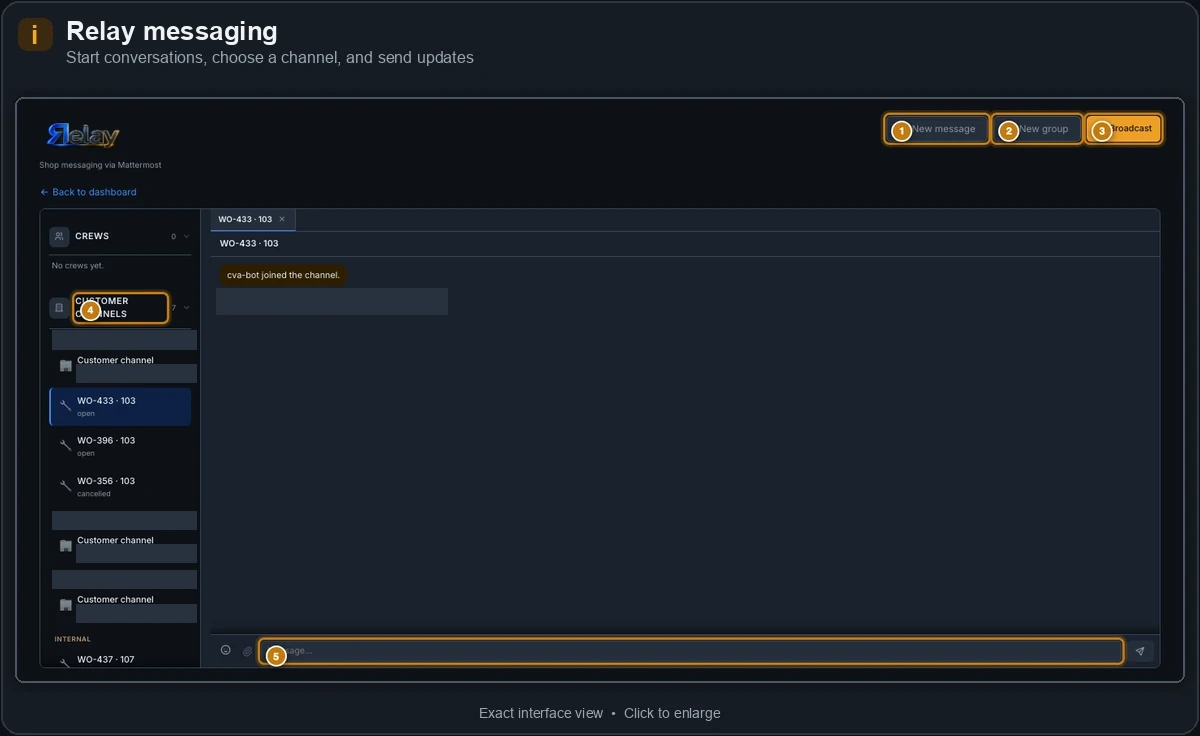
A technician needs a Relay account before they show up as someone you can message. Open their record in Admin → Users and use the Relay messaging section's Enable Relay messaging button — self-service, no request to Integovox needed. Deactivating that technician disables their Relay access automatically; re-enable it the same way if they're reactivated later.
The shared login you sign in with day-to-day (the one every desktop user logs into with) has its own system account here so it can send messages too — you won't see it in any technician picker or report, that's intentional, not a missing person.
Desktop is one app; these are five more, separate surfaces for people who aren't sitting at a desk. Each has its own sign-in and its own screens — nobody has to learn the whole desktop app just to log a fuel fill-up or clock into a job.
TBV1 — the shop tablet
The shared tablet mounted (or carried) on the shop floor — landscape-only, sized for an iPad, not a phone-style portrait layout. Sign in by tapping your own name from a grid, then your PIN. Home shows today's active jobs, a quick tally (active jobs, jobs waiting on parts, labour logged today, anything still waiting to sync), and one-tap shortcuts to a new work order, Scan, Parts, AI Mechanic, and Receive Parts (photograph a delivery and let AI pre-fill the line items — the same idea as desktop's own Parts intake, built for the tablet). Opening a job walks the same real Problem → Diagnose → Repair (or Inspection, for that job type) → Verify stages the phone apps use, with quick side-sheets along the way for asset history, parts, fault codes, notes, and photos. Two round buttons float in the bottom-right corner on every screen: Яelay for messaging, and — newly added — Ask Phoenix, the same AI assistant available everywhere else in the app, already aware of which job you have open when you ask.
A tablet only works at all if it's one your shop has actually set up (a build-level key, checked by the server before anything loads) — a personal device browsing the same address won't load real data. That's separate from who's signed in on it.
DriverMV1 — the driver's phone
Signs in with a personal PIN, same as every other PIN screen in the app — driver identity matters here since a DVIR is a legal record. The bottom tabs are Home, DVIR, Alerts, and More, always present, plus either Fuel and Trips (for a highway/long-haul unit) or Stops (for a local-duty unit) depending on which kind of unit is currently selected — the app picks the right pair for the job automatically. Home shows the day's trip status and, for a commercial unit, plain-English hours-of-service numbers; tapping that strip opens the full HOS log (it has no tab of its own). Alerts is a live, shop-wide feed of anything that's fired recently — safety flags alongside routine things like a low-stock parts warning, so an unfamiliar-looking entry there isn't cause for concern. Fuel logs a fill-up (with receipt-photo scanning and fuel-card prefill); Trips is the scale-ticket/bill-of-lading flow for a highway run; Stops is a simple arrive/depart list for a local multi-stop day.
ShopMV1 — shop tech, phone version
A deliberately smaller phone version of the shop-floor workflow: just the active work order, clocking in and out, the checklist, a photo, and notes — using the same shared tech sign-in as the tablet. Good for a quick check or update without walking back to the tablet.
TechMV1 — a technician's own phone
A separate, dedicated technician app (its own PIN, checked against the same technician roster as everywhere else). Home shows today's job pool and lets you clock in/out; Jobs takes you from a list into a job's own problem → diagnose → repair → verify stages, with AI Mechanic help along the way and a PIN-certified sign-off when repair work is done; a Scan tab reads a barcode or asset QR code; and a More menu reaches Parts, Яelay messaging, your time log, and Phoenix.
ShopMV1 and TechMV1 currently cover a lot of the same ground — both are "shop tech, on a phone." That's a known overlap, not a mix-up on your part; ask your account contact which one your shop should standardize on if this comes up.
SupervisorMV1 — for a shop supervisor or manager
Its own phone app, PIN-gated against the supervisor/manager roster. Home leads with exceptions — out-of-service units, blocked jobs, overdue items, pending deferments and sign-offs — rather than a general dashboard. Alerts is the real DVIR decision queue (Override OOS, Approve Deferment, Require Repair, Sign Off Repair — the same PIN-gated actions available on desktop, just from your phone). Also reaches Jobs, a read-only Schedule (today/tomorrow bay availability), and a More menu for Fleet, Parts, Relay, a link out to Motive, and Phoenix.
Inventory
A landing hub, not a working list — three tiles (Parts, Hardware, Consumables) each showing SKU counts, critical/reorder shortfalls, and recent receipts. Open goes to the real browser for that category.
Parts
A fast, keyboard-first browser: category tree, searchable table, detail pane. Search matches part number, description, or bin location. Keyboard shortcuts: / search, arrows to move selection, Space to batch-select, P print label, 0 create PO, T transfer to work order, Esc clear. Detail pane includes a quick +/− stock stepper and a running audit log of every receipt and consumption.
Hardware
Same three-panel browser as Parts, organized by your shop's real hardware taxonomy in fixed physical-bin order rather than alphabetical.
Consumables (Inventory)
Same browser again, scoped to fluids/chemicals/lubricants — real, working stock data.
Parts intake
Photograph a supplier invoice, a part label, or the part itself — AI pre-fills a line-item list to confirm. A line that doesn't match an existing part is flagged amber and added to your catalog on submit, not rejected. Desktop-only for now.
Invoice capture
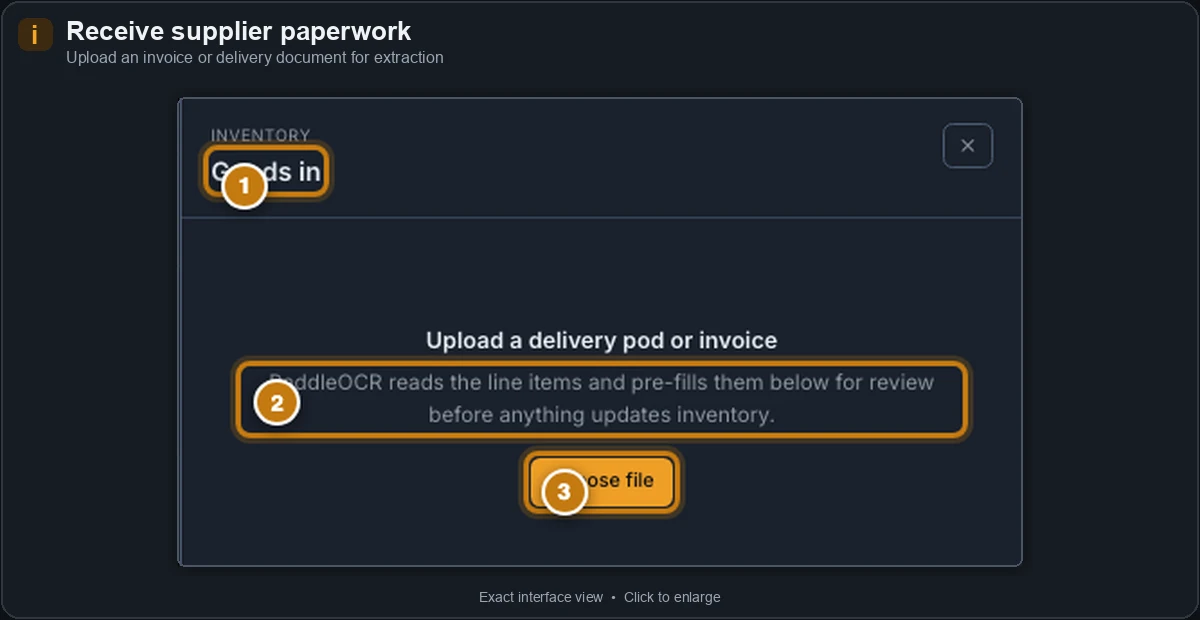
Scan or enter a supplier's invoice — distinct from Customer invoices, which is what you bill out. Opens the same real "+ Add invoice" (Goods In) flow as Purchasing below: photograph or upload the delivery paperwork, AI extraction pre-fills a line-item list against your real parts catalog for you to confirm, and stock updates automatically on save.
Customer invoices
Every invoice billed to a customer, filterable by status (Draft, Sent, Partially paid, Paid). Per invoice: Print, Email invoice (once Google's connected), Mark sent, Record payment / Mark paid, Export to QuickBooks/Xero. This is the older path — see QuickBooks Consolidation for the newer work-order-first queue, which exists alongside it rather than replacing it.
Estimates
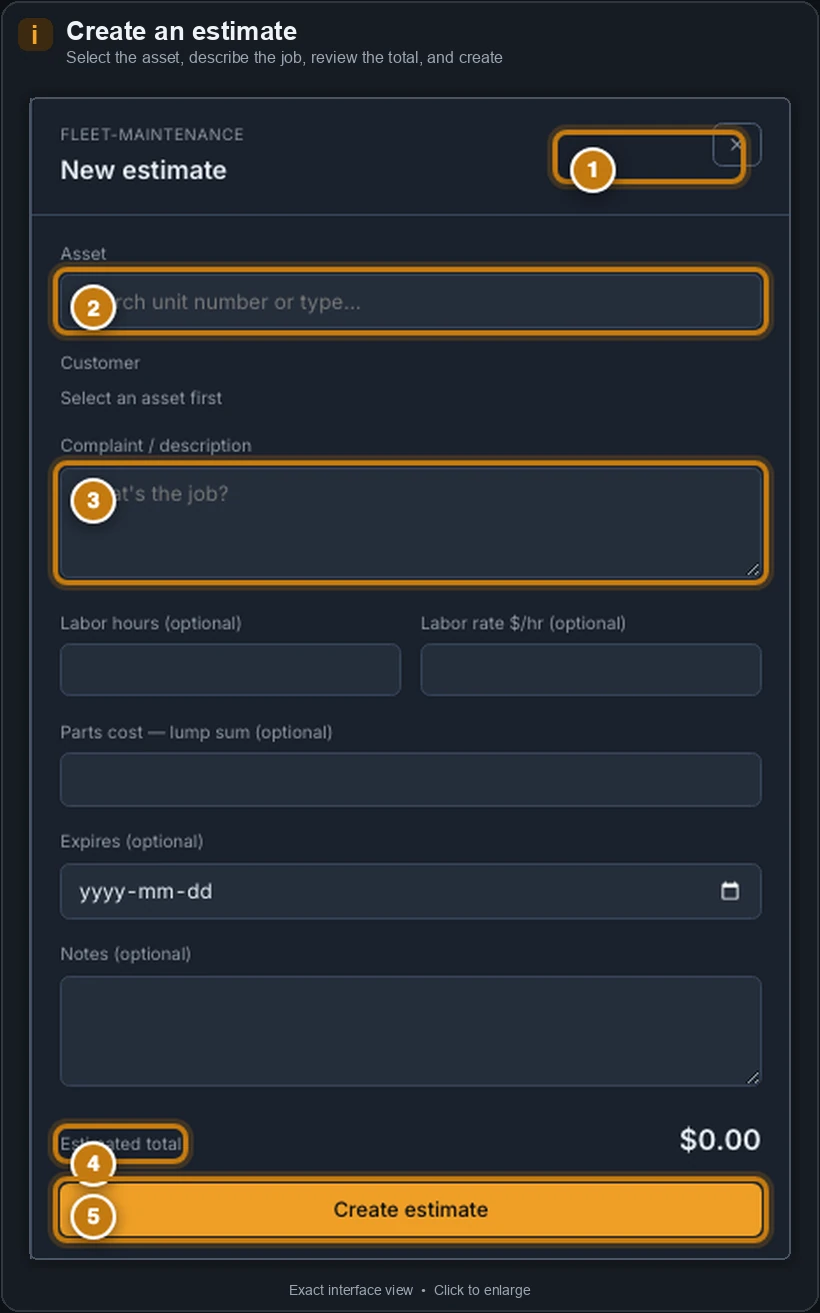
Quote a job before opening a real work order. + New estimate picks an asset (customer resolves automatically), description, optional labour/parts figures, and an expiry date — total calculates live. Send to customer moves a draft to Sent; Decline is available on a sent estimate; Approve converts a sent estimate into a real work order.
AR aging
A standard 30/60/90-day accounts-receivable report by customer — read-only, computed from the same billed-invoice data as Customer invoices and Accounts, so all three agree. Buckets under 60 days read amber; 61+ reads red.
Accounts
Your customers (distinct from Admin → Users, which is staff). Each account: contact info; Portal & Яelay access (one code for both — Regenerate access code immediately invalidates the old one, hence the confirmation); billing (credit terms, limit, payment method, tax overrides, labour-rate override); linked assets/history/invoices; and document links (references stored files, not uploads).
QuickBooks Consolidation
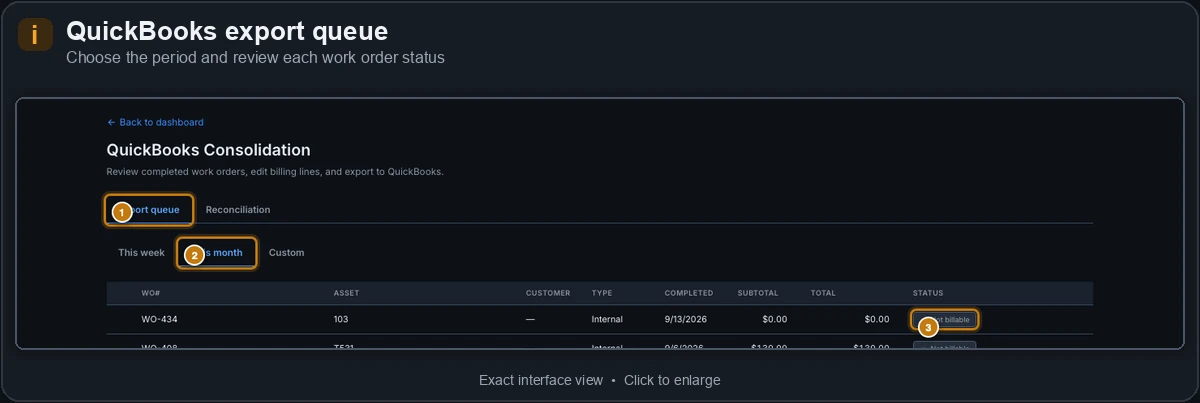
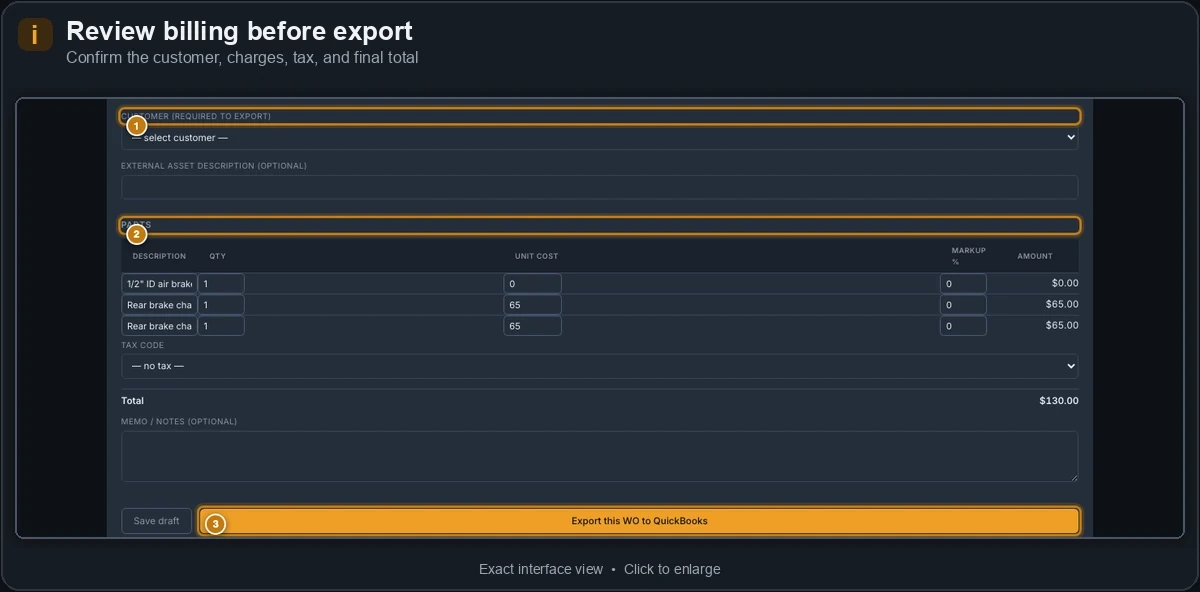
A newer, work-order-first review-and-export queue, separate from Customer invoices. Export queue tags every completed WO in a period as Internal, No customer, Needs review, Ready, or Already exported — expand a row into an editable billing sheet (real clocked labour rates, real logged parts costs), then export singly or as a batch (locked once exported). Reconciliation compares platform totals against what QuickBooks recorded at export time — a snapshot, not a live QuickBooks read.
Shop assets
Your shop's own tools/equipment, not fleet vehicles. + Add asset supports invoice-scan auto-fill. Mark disposed retires without deleting the record.
Fuel & DEF
Your on-site bulk fuel bunker and DEF totes — distinct from driver-logged retail fill-ups elsewhere. Tank cards show real-time level and a 30-day run-rate forecast; under 25% flags low regardless of reorder point. + Log delivery keeps BC carbon tax as its own line; + Log draw values fuel at that moment's reference price (editable going forward, past draws keep their captured rate). Reconciliation catches leaks/miscounts via manual dip readings — under 2% variance is normal noise, over 5% is worth explaining. Analytics includes a fleet efficiency league table and honestly-empty placeholders where telemetry coverage (currently 3 units) isn't enough yet.
Purchasing
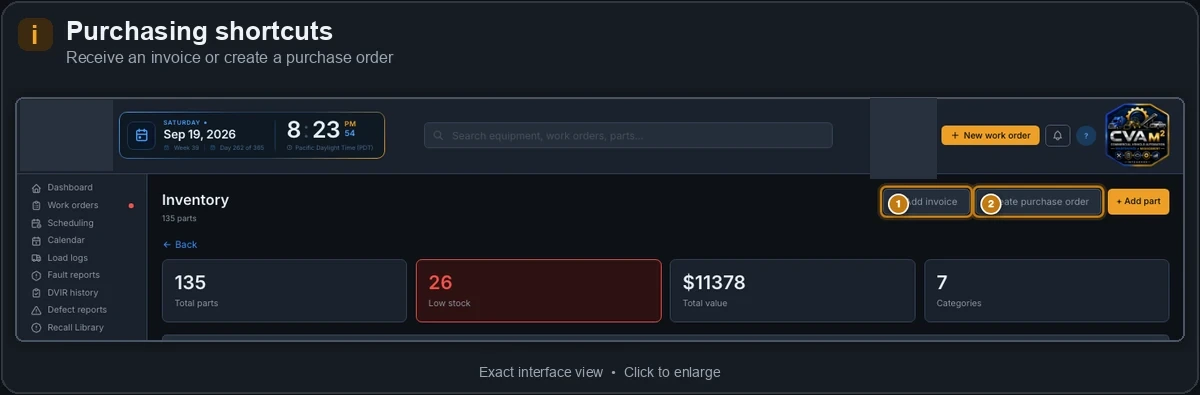
The older full manage/edit/PO/goods-in workflow. + Add invoice ("Goods In") is the working invoice-receiving flow — same screen Invoice capture above opens. Create purchase order bulk-orders everything below minimum in one pass, grouped into per-supplier draft POs automatically.
Once a purchase order is created there's no desktop screen today to see its status (draft/ordered/received) or mark it received directly — receiving parts against a PO isn't linked up yet, so track a PO's progress with your supplier directly until this is built, and use + Add invoice above to log stock as it physically arrives regardless of which PO it was against.
Suppliers
Your supplier directory — category, contact, account number, terms, ordering method, lead time. Primary tags the go-to supplier per category; Active/Inactive controls whether they appear in ordering pickers elsewhere without deleting the record.
Time log
Every shift, clock-in to clock-out, filterable by technician/date. Three summary cards: total hours this week (fixed, independent of filters below), average shift length, busiest day in the current filter. A shift in progress shows hours as of right now, not live-ticking. Export CSV downloads the current filter.
All four are read-only lenses on data entered elsewhere — nothing here is edited in place.
Cost analysis
Four views: cost per asset (top 8, all-time), work orders by type, a full monthly spend table filterable by asset type, and fuel cost per asset (sourced from WEX, tracked separately from labour+parts). If nothing's been logged yet, one message replaces all four charts rather than showing them empty.
PM compliance
A compliance donut (on schedule / due soon / overdue) and a table of every asset's interval, hours until service, and status — both react to the asset-type tabs above them, recalculating for the filtered subset only.
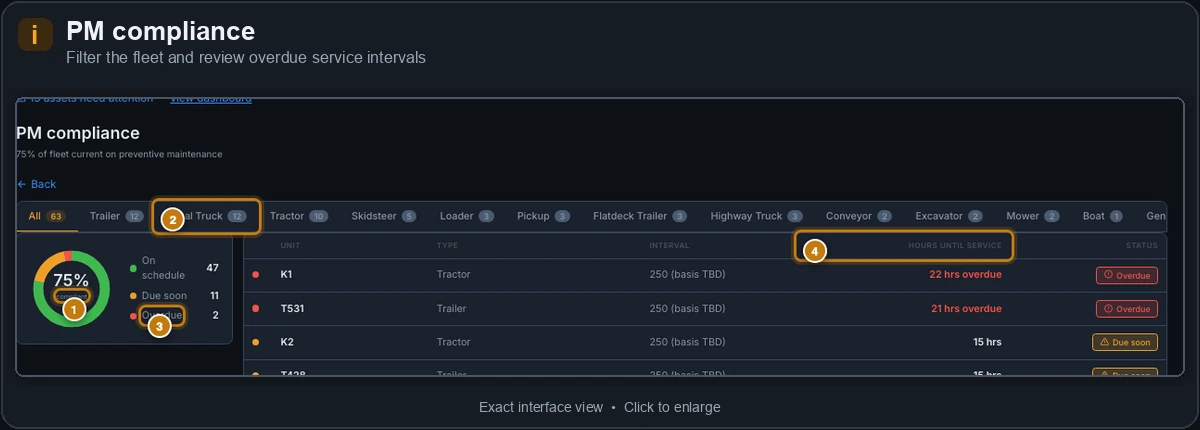
Completing the preventive-maintenance job doesn't automatically clear this status today — nothing in the app writes the asset's new service hours back after the work is done, so the same asset can flag overdue again on the next check. Tracked as a real gap, needs a product decision on how a completed PM job should update the asset's meter reading before it's built.
Technician efficiency
One row per technician per week — hours logged, work orders worked. Always real data, sourced directly from clocked time. Two leaderboard bar charts for the current week, plus a full weekly-breakdown table with average hours per work order.
If a technician's hours look split across two names, or a test/training account shows up in the leaderboard, that's a roster data-hygiene issue (e.g. inconsistent capitalization, or a leftover test PIN) rather than a reporting bug — worth a quick check in Admin → Users.
Vehicle replacement
A transparent keep/watch/replace model — every input (lifetime cost, age vs. industry lifecycle, 3-month cost trend) sits visibly on the same row as the recommendation. Replace fires past full lifecycle or a 50%+ cost jump above lifetime average; Watch at 75% of lifecycle or a 20%+ jump. Truck/trailer lifecycle figures are researched industry numbers; other equipment uses a reasonable planning default — treat those as a conversation starter, not an authoritative figure.
Users & Staff
Every technician, driver, supervisor, and admin account — the same roster the PIN/sign-in screens on TBV1, DriverMV1, ShopMV1, TechMV1, and SupervisorMV1 all check against (see Mobile & Tablet Apps above for what each one is). Add User sets name, role, and PIN — no self-service sign-up. PINs are per-person, not shared: every PIN-gated action (Override OOS, Approve Deferment, Sign Off Repair, Verify) is attributed to whoever entered it, same as a signature. Roles gate what a person can do, not just which app they open. Reset a forgotten PIN from the same record — never create a duplicate, which breaks attribution history. Opening a technician's record also has a Relay messaging section — see Relay above for what it does.
Import Assets
Opens in a new tab — a one-time setup tool, not a routine destination. Bulk-seeds assets from CSV: download the template, upload, preview the first 10 rows (each flagged OK or Error with the specific issue), then import. asset_type is checked against a known list but not strictly enforced. Leaving next_service_hrs/service_interval_hrs blank reads "tbd" rather than showing a wrong status.
Inspection Templates
Controls what a driver's DVIR walkaround actually asks for — zones and items, per asset type. Takes effect on every driver's next inspection; no separate publish step.
Connected Devices
Every device slot across your team and its live connection state — the same summary as the Dashboard's own tile, useful for confirming who's actually logged in across desktop, tablet, driver/tech/supervisor phones without asking around.
Integrations
Motive, QuickBooks Online, Google Workspace, WEX, Geotab, Xero — each has its own config panel here (API key, or a "Connect" button for the ones that use a real login handshake). "Not configured" means not yet connected, not broken.
An amber Connected (Sandbox) pill means QuickBooks is linked to Intuit's test/sandbox company, not your real QuickBooks account — invoices exported while it reads this way go nowhere near your actual books. A green Connected pill (no "Sandbox" label) means it's your real account. Switching from sandbox to your real QuickBooks credentials is a one-time setup step — contact Integovox if this still reads Sandbox and you're ready to go live.
Motive's panel reads Not connected until a real Motive account is linked. The app never shows a placeholder connection as if it were live, so a GPS, hours-of-service or fault-code figure only appears once a real account is connected.
Settings
Shop-level configuration — name/branding, notification preferences, account defaults. Distinct from an individual user's own in-app settings (units, default trailer), which each person sets themselves.
What's genuinely manual, on purpose
A few things intentionally require a person rather than automation: mobile app releases (TestFlight/Play Store need an interactive developer-account step), re-authorizing an expired integration token, and new-staff PIN setup (always a manual entry, by design — every PIN needs a real person confirming it's the right individual). None of these are gaps to fix.